AI Chat
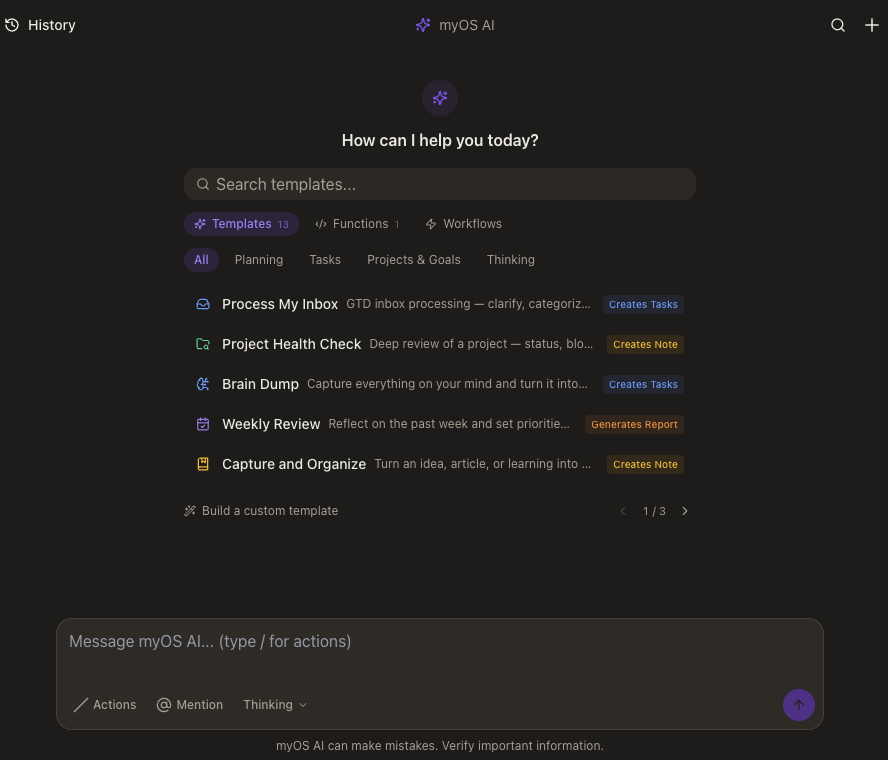
AI Chat is your conversational interface to an AI that has access to everything in your system. Ask questions, give instructions, or let it take action on your behalf. It's designed for both quick queries and extended collaborative work sessions.
What makes it unique
Unlike typical chatbots, this AI has access to your entire system — your tasks, goals, notes, calendar, metrics, files, and history. You can mention specific resources with @, trigger workflows with /, and watch it execute actions through specialized tool interfaces. Multiple conversations can run side by side, each with its own context and purpose.
Core Features
Conversational Interface
A natural chat interface where you can ask questions, give instructions, or request actions. The AI responds in real-time with streaming text, and you can interrupt or continue conversations across multiple sessions. Each message supports full markdown formatting.
Resource Mentions
Type @ to mention any resource in your system — tasks, projects, goals, notes, people, files, or apps. Mentioned resources appear as chips above your message and give the AI direct access to that data for context-aware responses.
Slash Commands
Type / to access action templates, workflows, and custom functions. This gives you quick access to pre-built prompts organized by category, user-defined automation workflows, and executable functions you've created.
Action Cards
When the AI takes an action — creating tasks, searching your data, running code, or triggering workflows — the results appear as interactive cards right in the conversation. Task lists have checkboxes, data shows as tables, and search results include previews you can click into.
Conversation History
All your conversations are saved and accessible from a toggleable history sidebar. Browse past conversations, click to resume where you left off, or Cmd+click to open one in a new panel. You can run multiple conversations side by side, each with its own thread and context.
Find in Conversation
Press Cmd+F or click the search icon to find specific messages or information within a conversation. Navigate through matches and see highlighted results, making it easy to reference earlier parts of long conversations.
Resource-Scoped Conversations
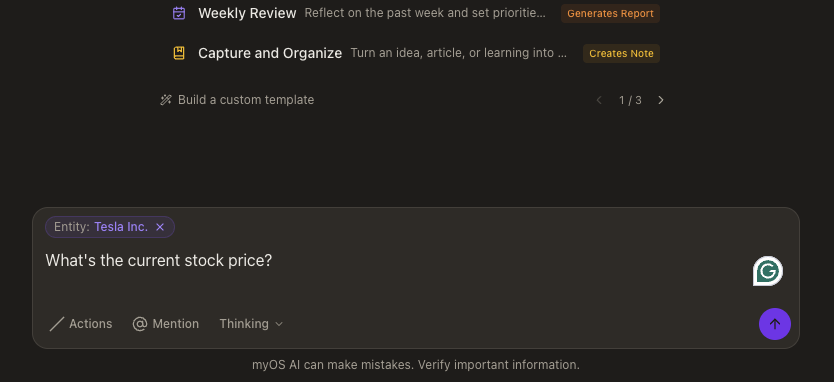
Conversations can be scoped to specific resources like a project, task, or goal. When scoped, a context banner appears showing which resource the conversation is focused on, and the AI automatically has access to all related data for that resource.
Interface Elements
Prompt Catalog
When starting a new conversation, browse templates, functions, and workflows to kick off your chat. Templates are organized by category (productivity, analysis, creative, etc.) and provide structured starting points for common tasks.
Thinking Mode
Choose between response tiers — Fast for quick responses, Thinking for better reasoning (default), or Pro for the highest quality. Each tier balances speed and capability based on your needs.
Human-in-the-Loop
When the AI needs approval for sensitive actions, an inline banner appears asking for confirmation. You can approve, reject, or sometimes edit the proposed action before it executes, keeping you in control.
Your AI work partner
AI Chat isn't just for questions — it's for collaboration. Ask it to analyze your goals, reorganize your tasks, draft emails, generate reports, or automate workflows. Because it has access to your entire system and can take actions, it becomes a genuine work partner that can help you get things done, not just provide information.