Smart Search
Press Cmd + K to open unified search across your entire workspace. Start typing for instant results, or press Enter for a deeper AI-powered search that gives you natural language answers.
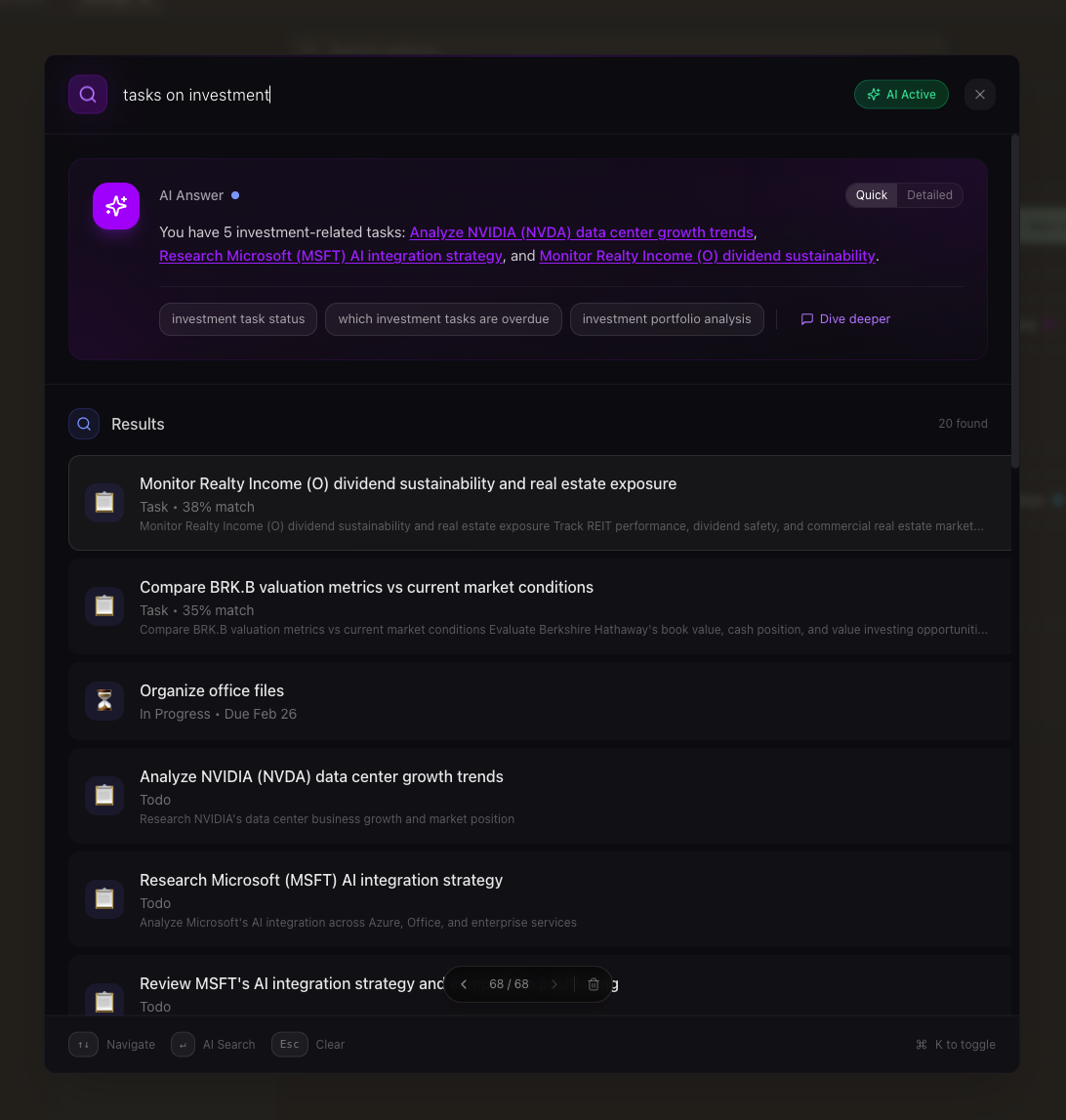
Two modes, one shortcut
Smart Search has two modes that work together. Fast search returns results as you type — instant and lightweight. AI search kicks in when you press Enter, adding natural language understanding and a synthesized answer on top of your results.
Fast Search
Start typing and results appear instantly — keyword and semantic search combined. Results span every resource type in your system: notes, tasks, goals, projects, bookmarks, files, activities, measurements, and more. Each result shows its type, title, and a preview, and clicking opens it as a panel.
AI Search
Press Enter to trigger a deeper search. The AI rewrites your query for better results, searches across your full knowledge base, and returns a natural language answer at the top — with a confidence indicator (high, medium, or low). Below the answer, your search results still appear so you can browse individual items.
Features
AI Answers
When AI search is triggered, the answer appears as a card at the top of results — rendered as rich markdown with links, lists, and formatting. Toggle between Quick and Detailed answer lengths depending on how much context you need. The AI synthesizes information from across your entire workspace, not just a single resource.
Follow-up Queries
After an AI answer, suggested follow-up queries appear as clickable chips. Click one to refine your search without retyping. Each follow-up builds on the context of your previous searches, so the AI understands what you've already seen and can go deeper.
Search History
Every AI search creates a page in your search history. Navigate back and forward between searches using the pill at the bottom of the dialog — your previous queries, results, and answers are all preserved. This turns search into a browsable research session rather than one-shot queries.
Dive Deeper
When an AI answer sparks a bigger conversation, click "Dive deeper" to open AI Chat with the full search context carried over. Your query and the AI's answer become the starting point for a deeper discussion, so you don't lose what you found.
What you can search
Smart Search covers every resource type in your system. Results show the resource type icon, title, preview, and a color indicator so you can scan quickly.
Keyboard Shortcuts
| Shortcut | Action |
|---|---|
| Cmd + K | Open / close Smart Search |
| ↑ ↓ | Navigate through results |
| Enter | Open selected result, or trigger AI search |
| Escape | Clear search, or close dialog |
Example Queries
“meeting notes from last week”
Find recent notes tagged or written during meetings
“how am I doing on my fitness goals?”
AI synthesizes your activities, measurements, and goal progress
“what did I bookmark about design systems?”
Surfaces bookmarks by topic, not just keyword matches
“tasks blocked on other people”
Finds delegated or blocked tasks across all projects
“what have I been spending time on this month?”
Pulls from activities, calendar events, and time blocks
“ideas I wrote down about the mobile app”
Searches across notes, tasks, and project descriptions
Search as a research tool
Smart Search isn't just for finding things — it's for understanding them. With AI answers, follow-up queries, and search history, it turns a quick lookup into a research session. Ask a question in plain language and get a synthesized answer drawing from across your entire workspace — without opening a single panel.