Core Interface
The workspace mechanics that keep you in flow — quick actions from the keyboard, instant capture, saved layouts, and a fully flexible panel system.
Command Palette
Cmd + Shift + P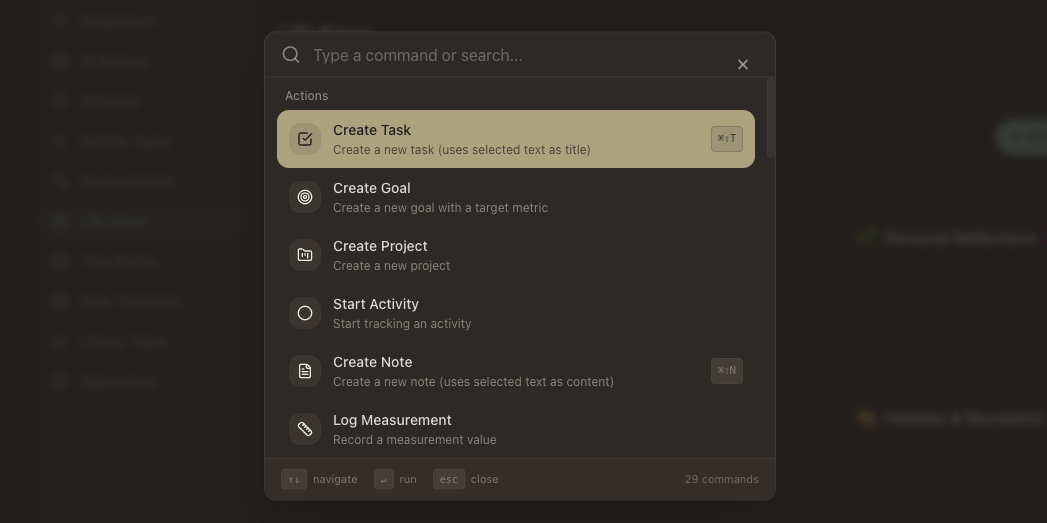
A single shortcut to access every action in the system. Open it with Cmd+Shift+P, start typing, and fuzzy search narrows down the list instantly. Commands are grouped by category — navigation, actions, formatting, wellbeing, and workflows.
Some commands are context-sensitive — they only appear when relevant, like text formatting commands that require an active editor. Each command shows its icon, description, and keyboard shortcut if one exists. Navigate with arrow keys, press Enter to execute.
App Launcher
A dropdown in the header bar that gives you quick access to all your web apps — the micro-apps your AI builds for you. Search by name, click to open as a panel in the workspace. Shows each app's title, description, and when it was last updated.
Notifications
The bell icon in the header shows a badge when you have unread notifications. Click to open a dropdown with your recent notifications — each showing a title, description, and timestamp. Unread items are highlighted so you can scan quickly.
Some notifications include inline actions — like approval requests from your AI that let you approve or reject directly from the dropdown without navigating away. Mark individual items as read by clicking them, or use “Mark all read” to clear everything.
Quick Add
Cmd + Shift + A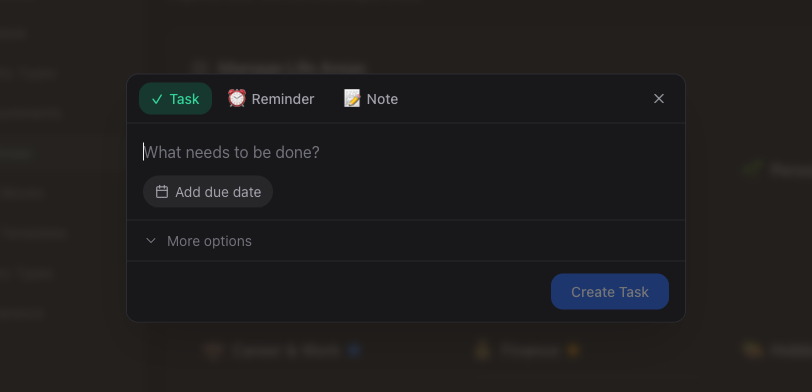
Capture a task, reminder, or note from anywhere in the workspace without navigating to a list first. A lightweight dialog appears with tabs for each type — type what you need, and it's saved. You never have to break your flow to record something.
Each tab has smart defaults and expandable sections for additional fields like due dates, priority, or project assignment when you need them.
Spaces
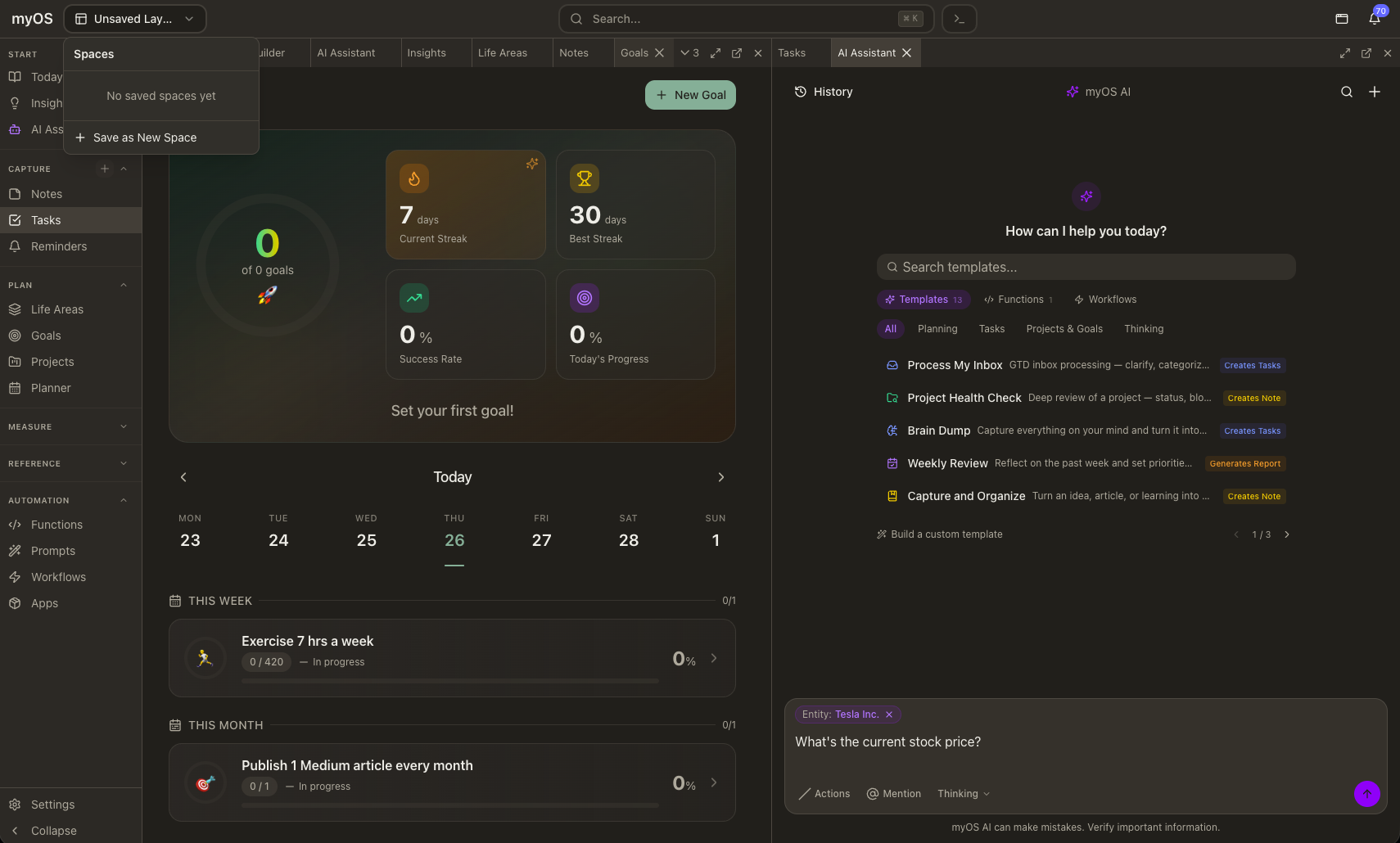
Spaces let you save and restore specific workspace layouts. Each space remembers which panels are open, their arrangement, and their content. Switch between spaces to context-switch between different workflows — a planning space with goals and calendar, a focus space with just tasks, or a review space with insights and metrics.
Save Current Layout
When you have a workspace layout you like, save it as a space. Give it a name and it appears in the Spaces sidebar. The space remembers which panels are open, their arrangement, and their current content.
Switch Between Spaces
Click any saved space to instantly restore that layout. Perfect for context switching — a planning space with goals and calendar, a focus space with just your task list, or a review space with insights and metrics.
Dynamic Content
Spaces remember the panel arrangement, but content stays live. A space with your task list will always show your current tasks, not the tasks from when you saved the space. The layout is fixed, the data is fresh.
Keyboard-first, mouse-friendly
Every feature on this page is designed to work from the keyboard — shortcuts for the palette, quick add, maximize, and pop out. But everything also works with drag-and-drop, clicks, and the header bar for people who prefer the mouse. The goal is speed without forcing a style.